API Key Generation Process
Follow these steps to generate an API key for accessing Wuilt's GraphQL API:
Step 1: Log in to Your Wuilt Account
- Navigate to Wuilt's login page
Step 2: Access the Dev tools Section
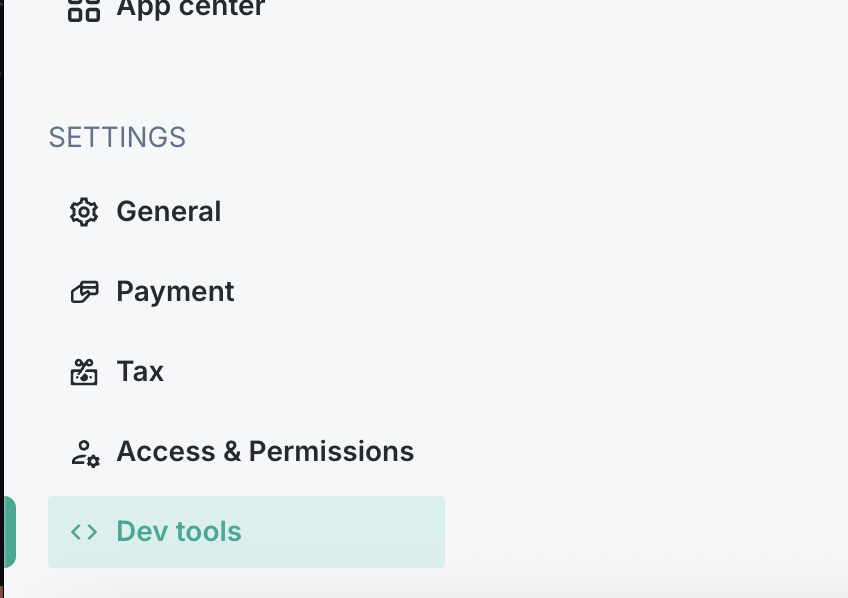
- From the left sidebar menu, scroll down to SETTINGS
- Click on Dev Tools at the bottom of the settings menu
Step 3: API Key Generator
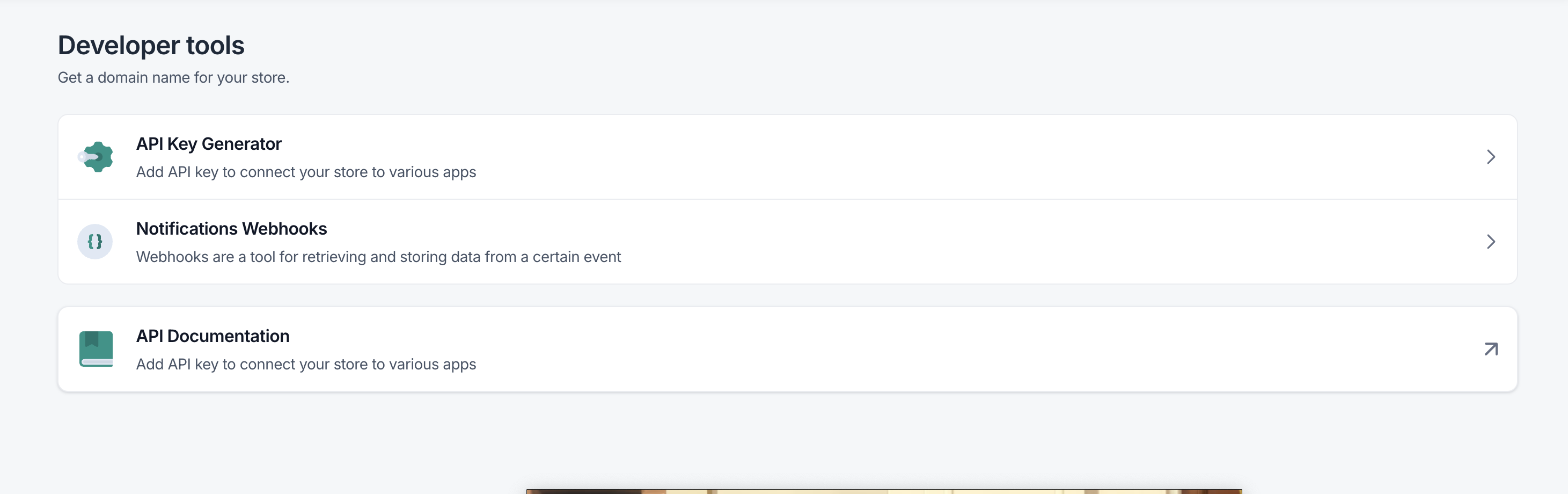
Click on API Key Generator card.
Step 4: Initiate API Key Generation
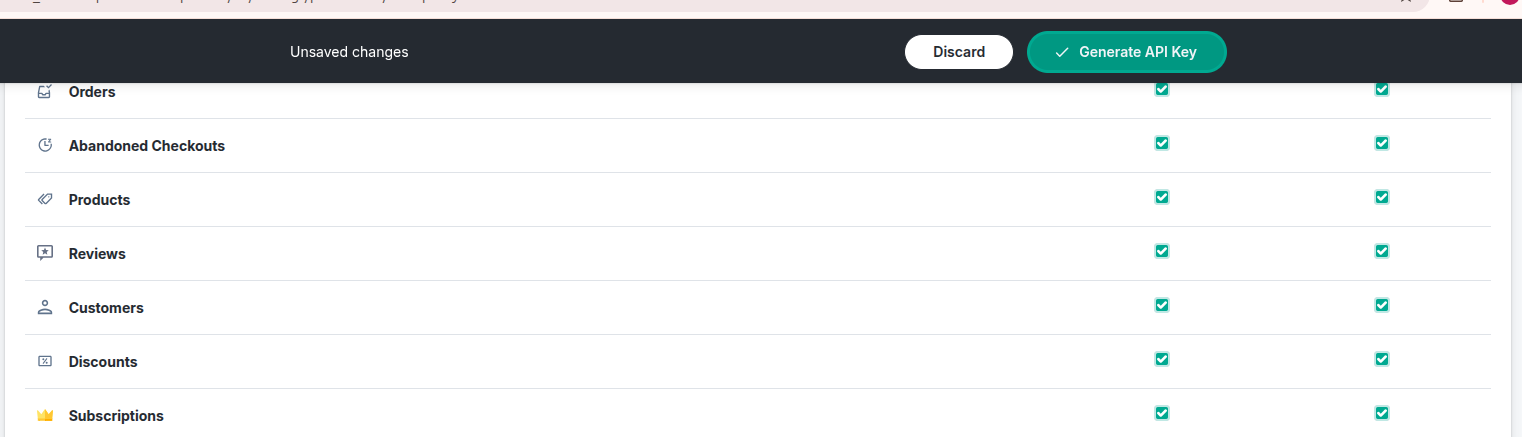
- In the API Key Generator dashboard.
- Click on Generate API Key button

Step 4: Configure Your API Key
- Enter a descriptive name for your key (e.g., "MyStoreIntegration")
- Select the specific permissions you want to attach to this key:
- Products
- Orders
- Customers
- Discounts
- etc.
- Review the permissions carefully
Step 5: Generate the Key
- Click the Generate API Key button
- Wait for the system to create your secure key
Step 6: Secure Your API Key
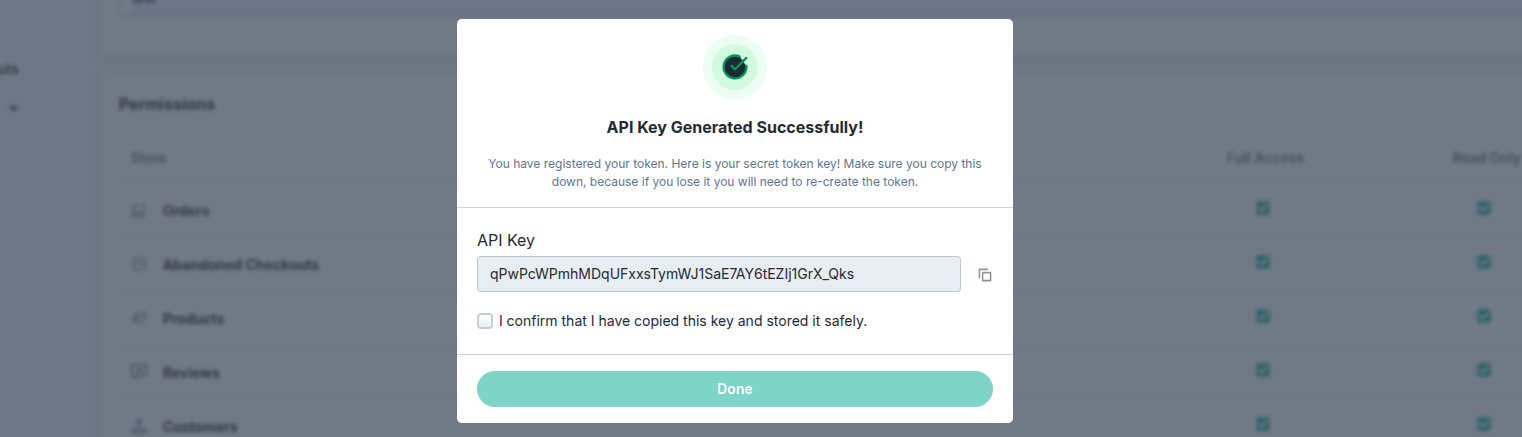
- Immediately copy the generated key displayed on screen
- Example key:
qPwPCWPrmhMDqUFxxsTymWJfSaE7AY6tEZjIfoFX_OKs
- Example key:
- Store it in a secure location like a password manager
- Important: This key will only be shown once and cannot be retrieved later
Step 7: Final Confirmation
- Check the box: "Confirm that I have copied this key and stored it safely"
- Click Proceed to complete the process
API Endpoint & Authentication
Now that you have your API key, here's how to use it to make requests to the Wuilt GraphQL API.
GraphQL Endpoint
https://graphql.wuilt.com/
Authentication
Include your API key in the request headers:
X-API-KEY: YOUR_API_KEY
Example Request
Using JavaScript/Node.js:
const response = await fetch("https://graphql.wuilt.com/", {
  method: "POST",
  headers: {
    "Content-Type": "application/json",
    "X-API-KEY": "your_api_key_here",
  },
  body: JSON.stringify({
    query: `
      query GetStoreInfo($storeId: String!) {
        store(id: $storeId) {
          id
          name
          email
        }
      }
    `,
    variables: {
      storeId: "your_store_id",
    },
  }),
});

const data = await response.json();
console.log(data);
Using cURL:
curl -X POST https://graphql.wuilt.com/ \
  -H "Content-Type: application/json" \
  -H "X-API-KEY: your_api_key_here" \
  -d '{
    "query": "query GetStoreInfo($storeId: String!) { store(id: $storeId) { id name email } }",
    "variables": { "storeId": "your_store_id" }
  }'
Next Steps
- Get your Store ID: Visit the Store ID guide to find your store identifier
- Explore the API: Use our interactive GraphQL playground to test queries
- Set up Webhooks: Configure real-time notifications for your store events
- Get AI Help: Use Context7 AI Assistant to chat with the documentation and get instant code examples
Best Practices
- 🔐 Never share your API key publicly or commit it to version control
- 🔄 Rotate keys periodically for better security
- 🚫 Revoke immediately if you suspect unauthorized access
- 📁 Store securely using encrypted secrets management
Troubleshooting
If you lose your API key:
- You must generate a new key
- Update all applications using the old key
- The previous key will be automatically deactivated